


Sheet Metal Design Mistakes: Catch Fabrication Errors in Modeling and Detailing
A sheet metal part can look perfect in CAD and still fail at the press brake. A hole may distort because it sits too close to a bend. A flange may come out short because the flat pattern uses the wrong K-factor. A drawing may call out a tolerance the fabrication process cannot consistently hold. These sheet metal design mistakes often begin during modeling or detailing, long before the part reaches the shop floor.
By DevWorks Automation Team · October 16, 2026 · 14 min read
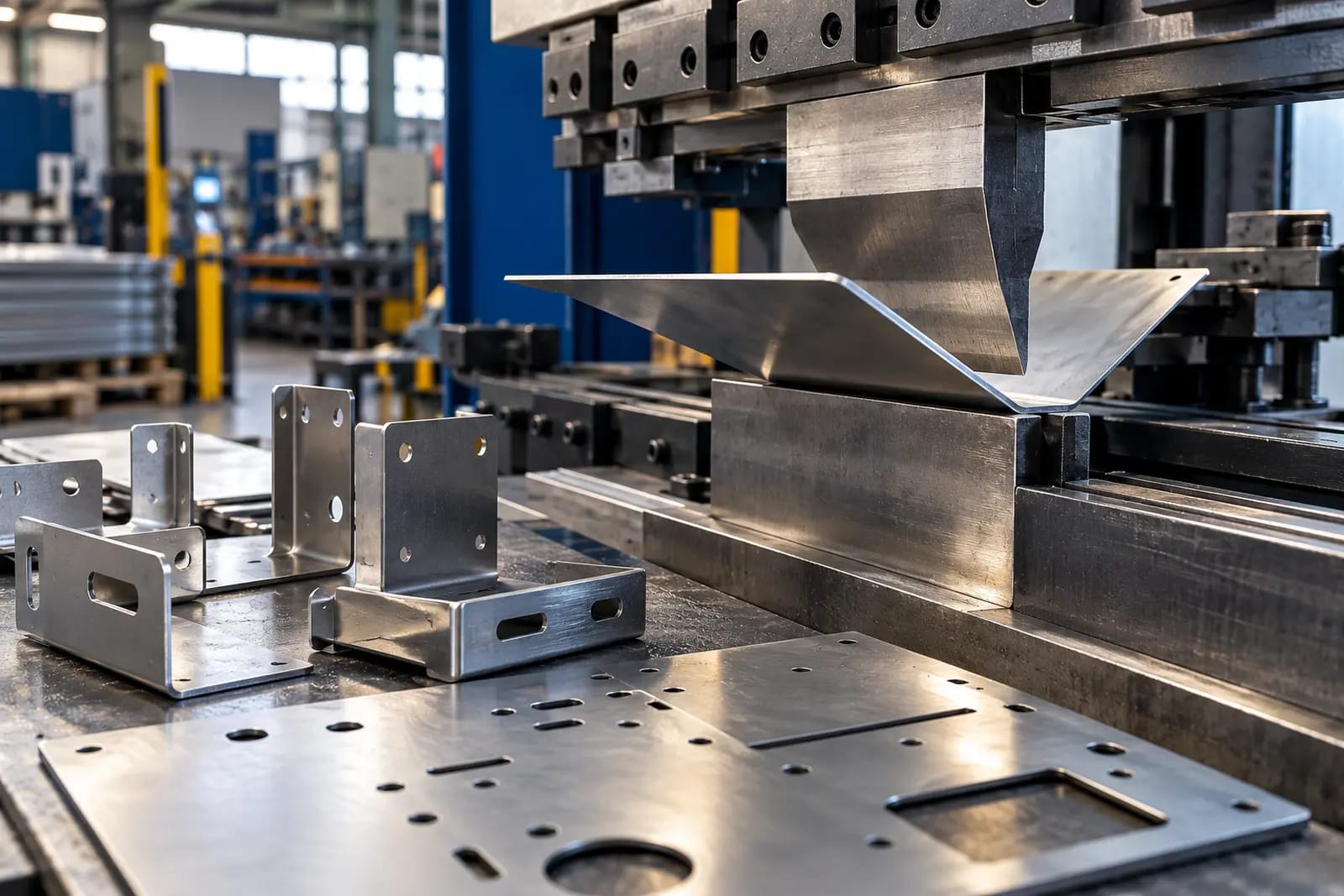
A sheet metal part can look perfect in CAD and still fail at the press brake. A hole may distort because it sits too close to a bend. A flange may come out short because the flat pattern uses the wrong K-factor. A drawing may call out a tolerance the fabrication process cannot consistently hold. These sheet metal design mistakes often begin during modeling or detailing, long before the part reaches the shop floor.
Many fabrication guides list the design rules to follow. The next step is understanding how errors enter an engineering workflow and how disciplined sheet metal modeling and detailing can catch them before release. This guide covers eight common mistakes, practical CAD and drawing checks, a pre-release checklist, and situations where design automation or external detailing support can help.
A note on the numbers: values below come from published fabricator guides and are starting points, not universal requirements. Confirm material-specific limits, bend data and tooling clearances with your fabricator before production release.
What Is Sheet Metal Modeling and Detailing?
Sheet metal modeling is the process of creating a formed part in CAD with appropriate material thickness, bend radii, bend data and reliefs so the part can be unfolded into a usable flat pattern. Sheet metal detailing turns that model into the information the shop needs to manufacture it: flat-pattern and formed views, bend notes, hardware callouts, tolerances, finish requirements, and cutting files such as DXF.
The two activities depend on each other. A correct model paired with an incomplete drawing can still produce scrap. A clear drawing based on an incorrect model simply documents the wrong part. Together, modeling and detailing provide the last engineering checkpoint before material is cut.
Why Sheet Metal Errors Reach the Shop Floor
Fabrication mistakes are not always caused by a lack of design knowledge. They often result from gaps in the workflow:
- The part is modeled as a generic solid: Without sheet metal features and bend data, the model may not unfold reliably. Because parts are made from a single sheet, fabricator guidelines require uniform wall thickness throughout the part.
- CAD defaults replace shop-specific data: Default bend radii and K-factors may not match the material, thickness, tooling or bending method used by the fabricator.
- Design rules are not built into the process: Minimum flange lengths, feature-to-bend distances and relief requirements may exist only in an engineer's experience instead of approved templates, gauge tables or automated checks.
- The drawing package drifts from the model: A late design change may update the 3D model while leaving a flat-pattern view, bend table or DXF out of date.
- Tolerances are copied from machined parts: Machining-level tolerances on formed parts drive extra inspection, rework and scrap, because forming carries more process variation than machining.
The common issue is process control. The checks below focus on building the rules into the model and drawing, then confirming that the released files represent the same revision.
8 Common Sheet Metal Design Mistakes and How to Catch Them
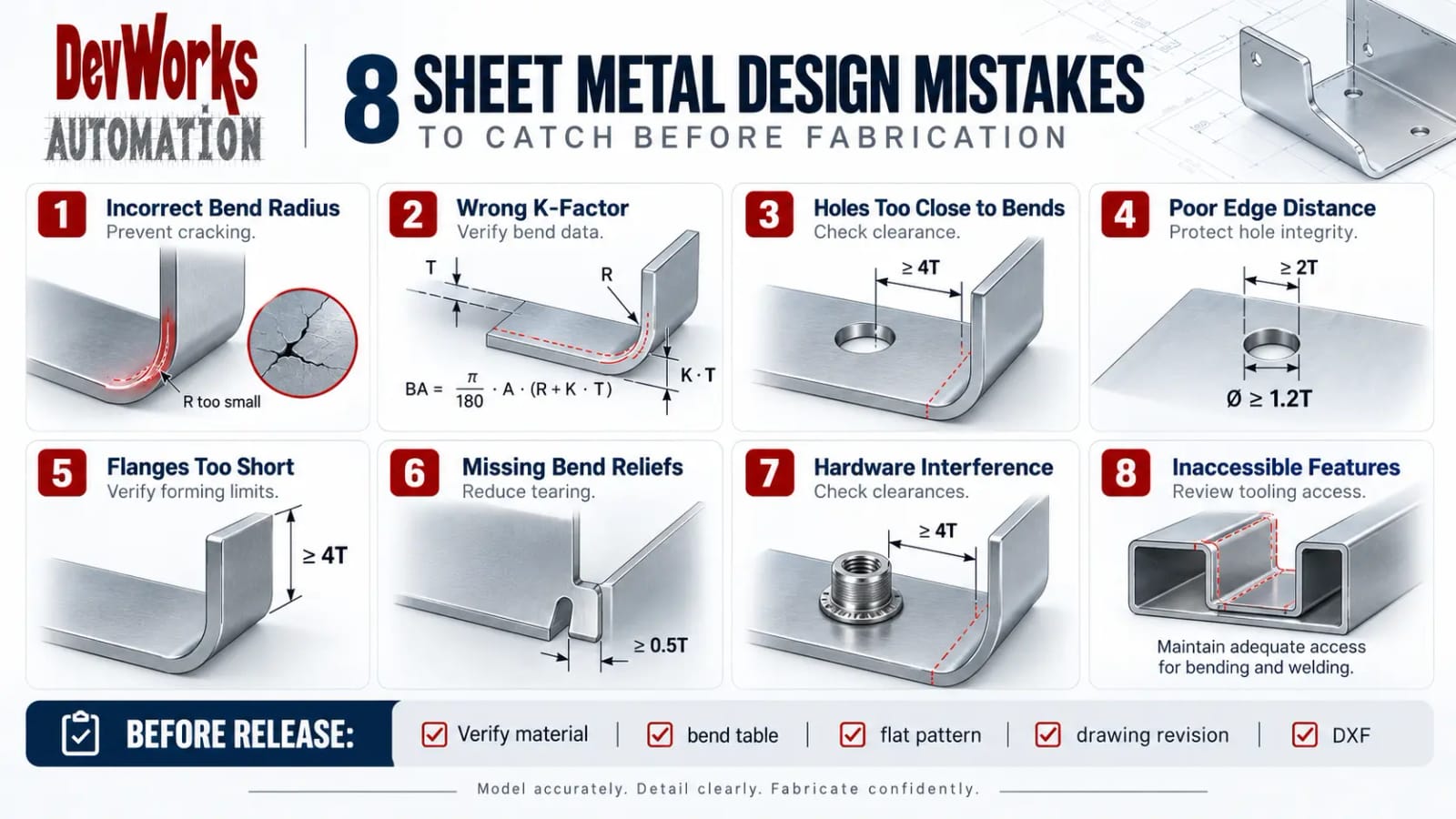
1. Choosing a Bend Radius That Is Too Tight
A bend radius that is too small for the material and its temper can cause cracking, excessive thinning or a failed bend. One radius is not suitable for every alloy and thickness.
- How to catch it in CAD: Use a material-and-thickness-specific gauge or bend table. Protolabs uses 0.030 in (0.76 mm) as its most common default inside radius. Prototek warns that less ductile alloys such as 6061-T6 aluminum crack at tight bends and need larger radii.
- How to prevent it: Use one inside radius across the part where the function allows. Protolabs recommends this because the shop avoids tooling changes, which lowers labor costs. Treat any local radius change as a deliberate, reviewed exception.
2. Using the Wrong K-Factor or Bend Allowance
The K-factor describes where the neutral axis sits during bending and is used to calculate bend allowance. If the value in the model does not match the actual material and forming process, the flat pattern is too long or too short, and the finished part has incorrect flanges or misaligned holes.
A common bend allowance formula is:
BA = (π / 180) × A × (R + K × T)
Where BA is bending allowance, A is the bend angle in degrees, R is the inside bend radius, K is the K-factor, and T is material thickness. Check that the angle convention matches your CAD system. Prototek cites K of about 0.33 for air bending; actual values vary with material, thickness, tooling and method.
The flat pattern is the geometry that gets cut, so a K-factor error repeats every bend. A part may look correct in its formed view while its flat pattern produces wrong flange lengths.
How to catch it in CAD: Store the fabricator's validated bend table, or values from test bends, in a shared gauge table. Never adjust flange dimensions by hand to compensate for an unverified bend allowance.
3. Placing Holes or Slots Too Close to a Bend
Material near a bend stretches during forming. A hole or slot placed too close can turn oval, distort or tear, and may interfere with the press-brake tooling. Protolabs' sheet metal design guidelines state that any feature within about 4x material thickness (4T) of a bend is at risk of deformation.
- How to catch it in CAD: Check feature-to-bend distances in the flat state and review the part in both flat and formed views. Use 4T as the default clearance and confirm it for the specific material and bend radius.
- How to prevent it: Add minimum-distance checks to templates or design rules, and flag any exception for review.
4. Making Holes Too Small or Placing Them Too Close to an Edge
Small holes and short edge distances cause tearing, bulging, weak features and poor punching or cutting quality. The right minimum depends on material, thickness, feature type, cutting process and load.
Supplier guidance differs here. Protolabs' tolerance guide sets a minimum hole diameter equal to material thickness. Prototek recommends an edge distance of at least 2T and a hole diameter of at least 1.2T in ductile materials, rising to 2T in high-strength materials.
How to catch it in CAD: Use approved feature libraries or design rules that reflect your fabricator's limits. Review edge distance, hole diameter, slot width and the feature's load together.
5. Designing a Flange That Is Too Short
A flange that is too short cannot be held or formed reliably by the press-brake tooling, which leads to incomplete bends, deformation, dimensional variation or assembly problems.
- How to catch it in CAD: Check flange length against material thickness and the fabricator's tooling. Both Protolabs and Prototek recommend a minimum flange length of 4T.
- How to prevent it: Add minimum flange rules to common part templates and review short flanges with the fabricator before release.
6. Omitting Bend Reliefs
When two flanges meet or a bend ends at an edge, the material needs room to deform. Missing or undersized reliefs cause tearing, bulging or an untidy corner. Many CAD systems create reliefs automatically, but the settings still need to suit the part and process.
- How to catch it in CAD: Inspect every bend intersection and free edge in both the formed model and flat pattern. Prototek recommends a relief width of at least half the material thickness.
- How to prevent it: Configure automatic relief settings in the sheet metal feature and review unusual corner conditions manually.
7. Placing Hardware Too Close to a Bend
PEM nuts, studs and other inserts are hard to install near a bend. Deformed material or limited tool access can stop the hardware seating, distort the mounting hole or complicate assembly. Prototek recommends keeping hardware holes at least 4T from a bend.
- How to catch it in CAD: Use the supplier's hardware model, check the specified hole and installation side, and review the distance to bends and nearby features. Where the hardware supplier publishes a specific clearance, use it instead of a generic rule.
- How to prevent it: Include installation access and post-forming clearance in the design review, and confirm with the fabricator whether hardware goes in before or after forming.
8. Creating Unformable Channels or Inaccessible Welds
A channel may look simple in 3D but be impossible to form with the available tooling. A weld seam may be hidden once the part is assembled. Protolabs recommends U-channels of at least a 2:1 width-to-height ratio, welds placed on the outside of the part, and a minimum material thickness of 0.040 in (1.016 mm) for welding.
- How to catch it in CAD: Review the bend sequence, press-brake tool access, collision risks and weld access. For complex parts, ask the fabricator to confirm the geometry can be formed and assembled with their equipment.
- How to prevent it: Design with the manufacturing sequence in mind. Where a shape cannot be made reliably as one piece, consider separate pieces joined by welding, riveting or another suitable method, and show welds with weld symbols rather than modeled closed corners.
Why Material Choice Belongs in the Model
Material affects bend radius, K-factor, minimum feature sizes, strength, corrosion resistance and finish compatibility. If material is only a drawing note while the model uses default values, the flat pattern will not update when the material changes.
Assign material and gauge through an approved gauge table where possible. When switching materials, review the bend data and feature rules instead of assuming the previous settings still apply.
Sheet Metal Detailing Mistakes That Cause Rework
A correct model can still produce the wrong part if the drawing package is incomplete or out of date. The shop works from the released drawing and cutting files, so the package must communicate the design without ambiguity.
Flat Pattern or DXF Out of Sync With the Model
A DXF or flat-pattern view exported before the final design change sends obsolete geometry to the shop. Export manufacturing files from the approved model revision only, include the revision in the drawing and file naming or release system, and make sure the shop receives the current package.
Missing Bend Information
A flat pattern without bend lines, bend direction, bend angle or radius leaves the operator to infer the forming sequence. Include a bend table or clear bend notes, plus at least one formed view when it removes ambiguity.
Dimensioning That Ignores the Manufacturing Process
Dimensioning every feature from one datum across several bends creates tolerance stack-up the forming process cannot consistently meet. Prototek suggests about ±0.030 in across three or more bends, compared with ±0.005 in on a single surface. Apply realistic general tolerances, identify critical-to-fit features, and discuss demanding dimensions with the fabricator before release.
Vague Hardware, Finish or Weld Callouts
A note such as "insert nut here" does not define the requirement. Name the exact hardware part number in the assembly information, as Protolabs recommends, then add size, installation side and any installation sequence. Identify the finish and state whether critical dimensions apply before or after coating when coating thickness affects fit. Use weld symbols and notes rather than modeled closed corners.
Drawing and Bill of Materials Do Not Match
When the assembly BOM, part numbers and drawing title block disagree, purchasing and production work from different information. Drive drawing properties and BOM fields from the same controlled model properties, and verify that revision and part number match at release. For high-variant products, BOM automation and validation generates the BOM directly from CAD data so it stays in sync with the design.
Pre-Release Checklist for Sheet Metal Parts
Run this checklist before releasing a sheet metal part, adjusting the numeric limits to your fabricator's approved data.
Model setup
- The part uses sheet metal features and consistent thickness.
- Materials and gauges come from an approved gauge table, not unverified defaults.
- The inside bend radius and K-factor or bend table match the fabricator's process.
- Any non-standard bend radius has been reviewed.
Feature checks
- Holes, slots, and hardware meet the approved minimum distances from bends and edges.
- Hole and slot sizes suit the material, thickness, and cutting process.
- Flanges meet the minimum length for the planned tooling.
- Bend reliefs are present and correctly sized at every relevant intersection.
- Hardware models, part numbers, and installation clearances are verified.
- Bend sequence, press-brake access and weld access have been reviewed where relevant.
Flat pattern checks
- The part unfolds without errors, gaps or overlapping geometry.
- The flat size fits the intended stock and cutting-bed limits.
- Bend data matches the fabricator's validated values.
- Grain direction is specified where it affects bending, strength or appearance.
Drawing and output checks
- The flat view shows bend lines and direction, with angles and radii where required.
- At least one formed view is included when it clarifies the part.
- General tolerances are realistic and critical features are identified.
- Hardware, finish, coating and weld callouts are complete.
- The drawing and DXF match the approved model revision.
- Drawing properties, part numbers and BOM fields agree.
A short review with the fabricator before the first production run resolves any gap between general guidance and their specific machines, tools and processes.
When to Standardize, Automate or Outsource Sheet Metal Detailing
A checklist works well for a small number of parts and an experienced team. As product variation or release pressure grows, repeated manual checks become harder to maintain.
| Situation | Common risk | Practical response |
|---|---|---|
| A few parts and an experienced team | Occasional checks are missed | Shared gauge tables, templates and the pre-release checklist |
| Many similar parts, such as enclosures, panels, guards or brackets | The same manual edits and errors recur | Rules-based CAD automation built on validated inputs and design rules |
| Engineering capacity is the bottleneck | Detailing is rushed or delayed | External modeling and detailing support with agreed standards and review steps |
Automating Repeatable Sheet Metal Part Families
When a product family varies mainly by dimensions, hole patterns or selectable options, the design rules can be captured and reused. Tools such as DriveWorks for SOLIDWORKS can generate configurable models, drawings and related manufacturing data from defined inputs, applying the same validated rules to every variant.
Automation works best when the product and its rules are reasonably stable. It does not replace engineering validation: automating an unstable design repeats its errors faster. Plan for setup, testing, version control and human review of new or unusual configurations.
Outsourcing Sheet Metal Modeling and Detailing
External support helps when the standards are known but internal engineering hours are limited. Define the gauge tables, drawing templates, tolerance rules, file-naming conventions, revision process and approval responsibilities before work starts. Without them, an external team may apply its own conventions and introduce new inconsistencies.
DevWorks Automation supports both approaches. Our sheet metal modeling and detailing services team prepares fabrication-ready models, flat patterns and drawing packages. Our CAD design automation and DriveWorks implementation teams help manufacturers turn repeatable product families into rules-based configurators. For lessons from real configurator rollouts, see DriveWorks Implementation: Common Pitfalls.
Frequently Asked Questions
What is the most common sheet metal design mistake?
Placing holes or other features too close to a bend is a frequently cited design issue. Material deformation during forming can distort or tear nearby features. A 4T clearance is a commonly published rule of thumb, but the final distance should be confirmed against the material, geometry and fabricator's process.
What is the difference between sheet metal modeling and sheet metal detailing?
Modeling creates the 3D part with appropriate thickness, bend data and reliefs so it can unfold correctly. Detailing prepares the drawings and manufacturing files, including flat patterns, bend notes, tolerances, hardware callouts and DXF files. Both must be correct for the part to be made as intended.
What K-factor should I use for sheet metal?
Use the value that matches the material, thickness, tooling and bending method. A value around 0.33 is often cited as a starting point for air bending, but the most reliable value comes from the fabricator's validated bend table or test bends. Avoid treating a generic value as universal.
Why does my flat pattern not match the finished part?
Common causes include a K-factor or bend radius that does not match the actual process, an incorrect material thickness, or a cutting file exported from an older model revision. Check the bend data first and confirm that the released DXF matches the approved model.
How tight should sheet metal tolerances be?
Tolerances should be only as tight as the function requires and should reflect the capability of the planned process. Formed dimensions may vary with material, tooling and the number of bends. Use realistic general tolerances and identify only the features that genuinely need tighter control.
Can sheet metal design checks be automated?
Yes. CAD templates and rules can help enforce approved gauge tables, minimum feature clearances, relief settings and repeatable drawing outputs. Configurators can be especially useful for product families with frequent variants. New or unusual designs still need engineering review and fabrication validation.
Fix Sheet Metal Mistakes Where They Start
Sheet metal design mistakes are made at the desk and paid for on the shop floor. A wrong K-factor, a hole 2T from a bend or a DXF from last week's revision costs minutes to fix in CAD, but scrap, rework and schedule slips once metal is cut.
The design rules are well known. What separates teams that release clean parts from teams that fight rework is whether those rules live in the model and drawing process: approved gauge tables instead of CAD defaults, a pre-release checklist run on every part and drawing packages that always match the released revision.
Start there. Once the basics hold, the next step depends on where the strain shows. If the same part families are detailed again and again, rules-based automation can apply validated design rules to every variant. If engineering hours are the constraint, outside modeling and detailing support can carry the load, as long as it works to your standards.
Seeing repeat rework on sheet metal parts? Talk with DevWorks Automation about your modeling and detailing workflow. We'll look at where errors enter your process and whether better templates, outsourced detailing or rules-based automation is the right fix. Book a consultation
References
- Prototek: Sheet Metal Design: 10 Mistakes to Avoid (June 29, 2026)
- Protolabs: 8 Mistakes to Avoid When Designing Sheet Metal Parts
- Protolabs: Design Guidelines for Sheet Metal Fabrication
- Protolabs: Sheet Metal Tolerances and Forming Guidelines (PDF)